From a running UI to a report you can trust.
Normascope captures what your users would see, compares it with what you intended, and shows you the difference without asking you to guess.
npx norma-scope initOne honest loop
Your UI
capture
Reference
design · baseline · URL
Normascope
align · compare · score
Your decision
fix · accept · investigate
Deterministic scoring first. Optional AI explanation second. Human judgment always.
What should this page be compared with?
Normascope is not tied to one kind of reference. Choose the source that matches the way your team works today.
A design
Compare your running UI with a design reference. Use this when the question is: does the build match what we intended?
An approved build
Approve a known-good browser capture, then compare future changes against it. This is visual regression testing without a design file.
Another environment
Compare a local or staging build with another reachable URL. Both pages are captured at the same dimensions before scoring.
Four steps from setup to signal
You do the setup once. After that, the normal development loop is a capture, a comparison, and a report you can inspect before the change reaches users.
- 01
npx norma-scope initSet up the project
Choose what you want to compare and which pages or frames to track. Normascope records the workflow in your project so the next run is repeatable.
- 02
npx norma-scope doctorCheck the setup
Before interpreting a diff, make sure the app, routes, references and capture dimensions are reachable and consistent.
- 03
npx norma-scope checkCapture and compare
One command that runs capture and then compare: it photographs the configured pages, aligns the captures, scores them against the reference, and writes a fresh report. Run the two separately any time you want only one of them.
- 04
open the reportDecide what changed
Review the side-by-side images, aligned score, diff overlay and regions worth looking at. A difference is evidence; you decide whether it was intended.
A section that moved is not a section that broke
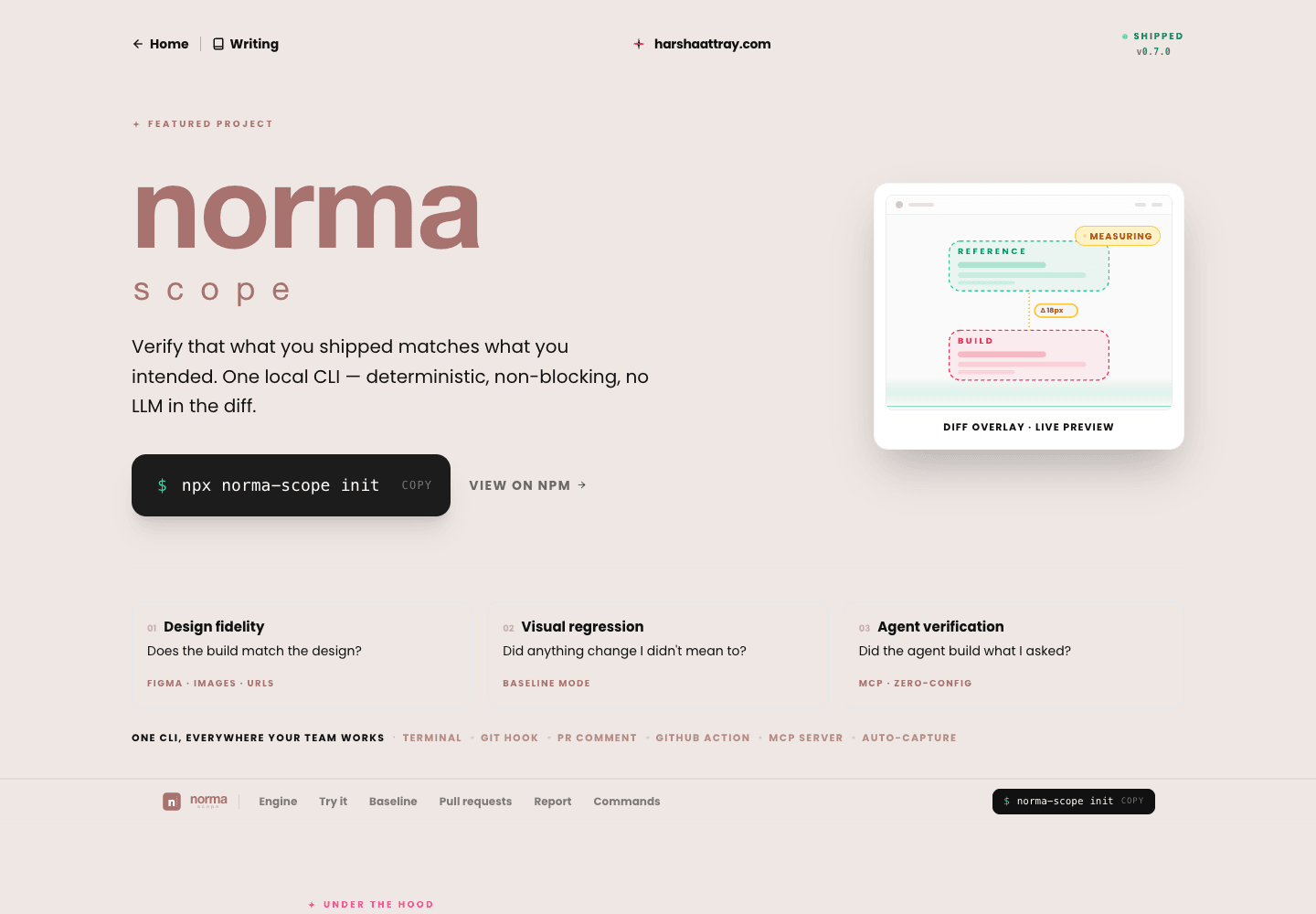
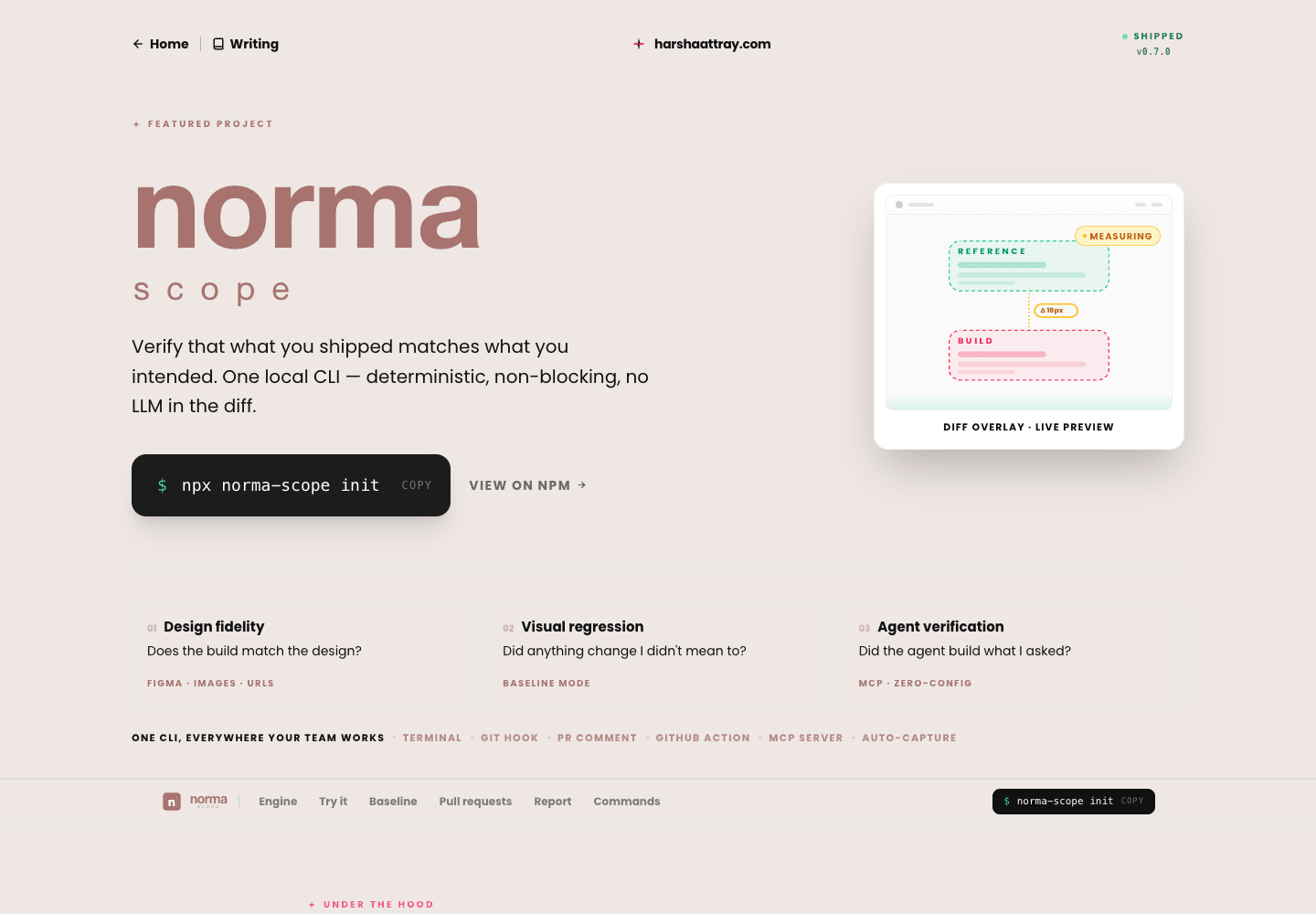
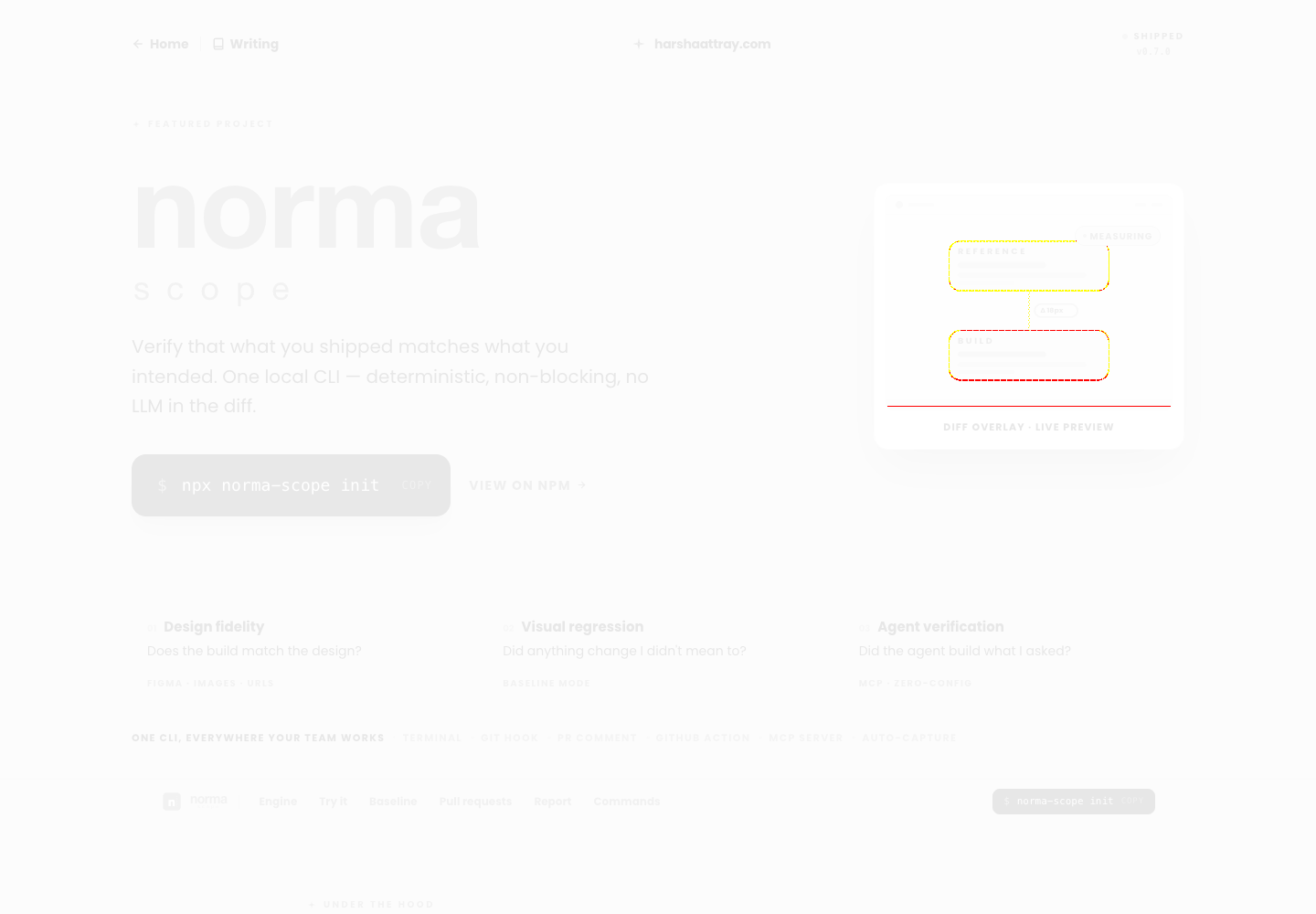
This is the difference between a tool you trust and one you mute. Switch between the two readings — same page, same run, same pixels.
A section got taller, so everything below it shifted down. A straight pixel comparison scores every one of those rows as different, and reports 5.63% — which reads like the page is broken.
Both numbers are reported, always. A wide gap between them is itself the signal: something moved rather than something broke.
- Aligned
- 0.26%
- Unaligned
- 5.63%
- SSIM
- 98.7
- Drifted sections
- 2
It separates movement from breakage.
A page can look very different because a section moved, even when the elements inside it are still correct. Normascope aligns comparable bands before it scores the real mismatch.
That gives you two useful signals: the unaligned number shows how much the page moved; the aligned number shows how much content genuinely differs.


The report tells you where to look.
- 1
Look at the overlay. See the changed pixels in context, not as an isolated percentage.
- 2
Check the region. Significant regions group nearby changes into places worth inspecting.
- 3
Decide what it means. Accept an intentional change, fix a regression, or investigate the capture.
One setting decides what counts as flagged
A frame is flagged when its aligned difference is above your threshold. Drag it and watch the same three real frames change their minds — at 0.1% one is flagged, at 1% none are.
1 of 3 flagged · Product page
- norma-product.png0.26%flagged
- lab-index.png0.03%clean
- articles-index.png0.00%clean
{ "threshold": 0.1 }Flagged means “look at this”, not “build failed” — nothing turns red without --strict.
Flagged means “look at this”, not “fail”. Nothing breaks a build unless you pass --strict.
AI can suggest a cause. It never decides the result.
Once you have a comparison, you can ask for an explanation of a flagged frame. It gives hypotheses to verify; the deterministic visual score remains the source of truth, and no explanation can change it or fail a build.
There are two routes, and you say which one. Having a key for either is never what decides where your evidence goes or who pays.
AI explanations are guidance, not instructions or guarantees. They may be inaccurate or incomplete. Use, edit, ignore, or discard them as you choose — whether to act is your decision alone. Normascope does not automatically apply them or decide pass/fail, and is not responsible for outcomes from decisions made using them.

Stay local
npx norma-scope explain --local [frame]Your own Anthropic key, on your own bill
- Diff crops, the DOM context captured alongside the screenshot, and any source excerpts you opted into.
- The outbound text is scanned for credentials first. A hit blocks the analysis and names the file rather than silently redacting it.
- Because this route is given your DOM and your code, its findings can name a CSS selector and a file.
“Local” means nothing goes to Normascope. Your evidence still reaches your own model provider, under your own agreement with them.
Use Cloud
npx norma-scope cloud publish --explainCloud credits you bought, on an organization plan
- The crops your comparison already found, the deterministic measurements, and the frame's history across your previous runs.
- History is the part a local run cannot have: how often this screen has drifted, and which commit it started at.
- Cloud is never given your DOM, your stylesheets or your source, so a hosted finding never names a selector or a file.
Publishing is included; analysing is opt-in and spends credits. A run uploaded as metrics has no images, so it cannot be explained — Cloud refuses it before reserving anything.
Sending a run somewhere it outlives your laptop
Everything above happens on your machine and produces a file. Publishing is a separate command you type — compare, check and the pre-commit hook never send anything, and cloud publish never captures or compares.
- 01
npx norma-scope cloud validateChecked here, not there
Says on your own machine what Cloud would refuse later — a screen with no permanent name, a missing project id. It makes no network request at all.
- 02
npx norma-scope cloud publishSend the completed run
Publishes what the comparison already produced, at the disclosure level you configured: off, metrics, review or full. It writes a receipt locally so your PR comment can mention the hosted run.
- 03
npx norma-scope cloud publish --explainOptional, and it spends credits
Asks Cloud to analyse the flagged frames using crops, measurements and the frame's history. Opt-in every time — holding a Cloud key never starts spending.
Start with one page.
You do not need a perfect test suite or a new platform. Point Normascope at one page your team cares about, run the loop, and learn what a trustworthy visual signal feels like.
npx norma-scope initNeed the hand-holding version?
Follow the commands, examples and troubleshooting steps from first setup to CI.